
Guides → Data & destruction
The hard drive hiding in your office printer
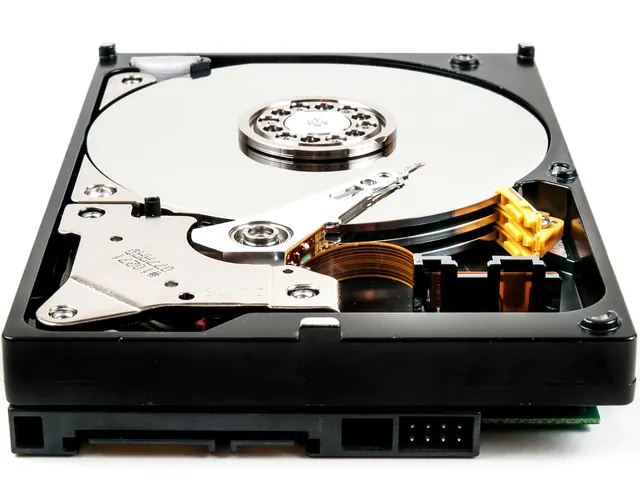
Ask most organisations to list the devices that store data and the office copier won't be on it. Yet a typical multifunction printer has a drive inside that has quietly kept copies of contracts, payslips, passports and patient letters, and then it gets collected at the end of its lease with nobody checking.
Why a printer needs storage at all
Modern multifunction devices (MFDs) are networked computers with a print engine attached. Most contain a hard drive or, increasingly, solid state storage, which they use for:
- Spooling and job queues, holding documents while they print.
- Scanning, staging images before they're emailed or saved to a folder.
- Secure print and document boxes, where jobs wait until someone releases them at the device.
- Address books and fax logs, full of names, email addresses and numbers.
- Stored credentials, such as the email account and network folder passwords the device uses for scan-to-email and scan-to-folder.
That last one is easy to overlook. A printer that scans to a shared folder often holds a network account password, which is a way into your systems as well as a record of your documents.
The case that made this famous
In 2010, a US television investigation bought used copiers from a warehouse and pulled tens of thousands of documents off their drives, including medical records from a health insurer. That insurer later paid more than $1.2 million to settle with the US health regulator, after it emerged that leased copiers returned without their drives being wiped had held the personal information of hundreds of thousands of people. The machines had simply gone back at the end of the lease like any other piece of office furniture.
UK law treats it the same way. If personal data on a copier drive ends up somewhere it shouldn't, you're the controller who let it leave. Nobody will accept "it was the printer" as an explanation.
Leased devices: whose drive is it?
Most MFDs are leased, which complicates things. The device belongs to the finance company or dealer, and at the end of the term it goes back to them. Check three things in your agreement well before the end date:
- Is a data wipe included at collection, and will they give you a certificate that names the device serial?
- Can you keep the drive? Many lessors allow this, sometimes for a small fee. The drive is then destroyed separately and the empty device goes back.
- What standard do they wipe to, and who actually does it: the dealer, a subcontractor or the manufacturer's refurbishment centre?
If none of that is in the contract, raise it now. It's far easier to agree in advance than on the morning the van arrives.
Security features you may already be paying for
Most major manufacturers offer data security options on business MFDs, sometimes as standard and sometimes as a licensed add-on:
- Drive encryption, so a removed drive is unreadable without the device.
- Image overwrite, which automatically overwrites each job's data once it has finished.
- End-of-life data wipe, a menu option that sanitises the storage before the device leaves.
It's worth checking whether yours are switched on, because they often aren't by default. Even with all three enabled, the end-of-life wipe is run from the device's own menu with no independent verification. For sensitive environments, removing the drive and dealing with it separately is still the cleanest option.
A printer disposal checklist
- Add every MFD, copier and networked printer to your asset register, with a note of whether it has internal storage.
- Check the lease for data wipe terms and drive retention options.
- Before the device leaves, change or disable the network and email credentials it has stored.
- Run the manufacturer's end-of-life wipe, and record that you did it.
- Where you're allowed to, remove the drive and destroy it according to its type: degaussed if it's a hard drive, shredded if it's solid state.
- File a certificate that names both the device serial and the drive serial.
The method depends on the storage. Older and larger machines usually have conventional hard drives, while newer ones often use SSDs or soldered flash. See degaussing, shredding or wiping for why that changes what you do.
Printers due for replacement? We'll remove the drives, match the destruction method to each one, and certify both serials.
Book a collection